Install on iPhone
About 2 minutes, once. You need Safari and the free Userscripts app; iOS 18 or newer is best. Updates later are a few taps.
Installed, but no B? See the fixes.
You’re on a computer. Do these steps on your phone: open bvm.astrals.dev/install/iphone there, or send yourself the link.
- 1
Get the Userscripts app
It’s free on the App Store, and it’s what runs Better Vest Mobile inside Safari. Its icon is a white tile with </> on it.
Open the App Store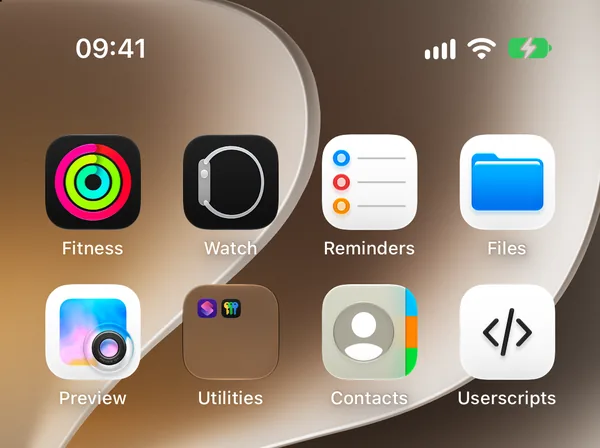
- 2
Open it once
Open Userscripts from your Home Screen. The first time, it makes the folder your scripts are kept in. Then you can close it.
- 3
Turn it on in Safari
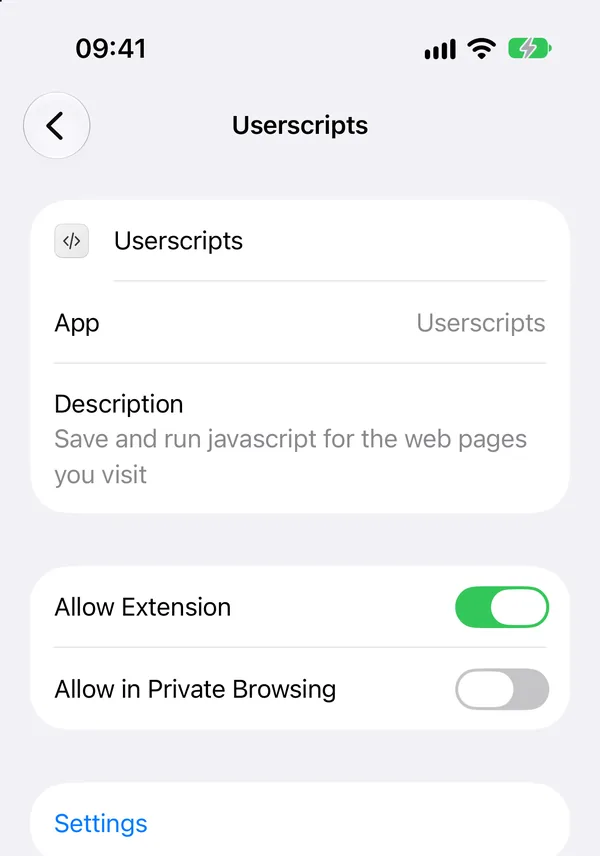
Open Settings, then Apps, Safari, Extensions, Userscripts, and turn on Allow Extension.
- 4
Open the script’s menu
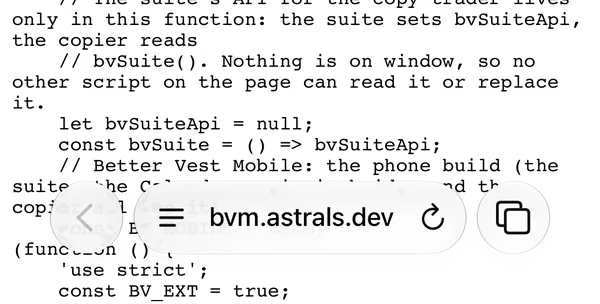
Tap Open the script below. Safari opens a page full of code. That’s the script, and that’s normal.
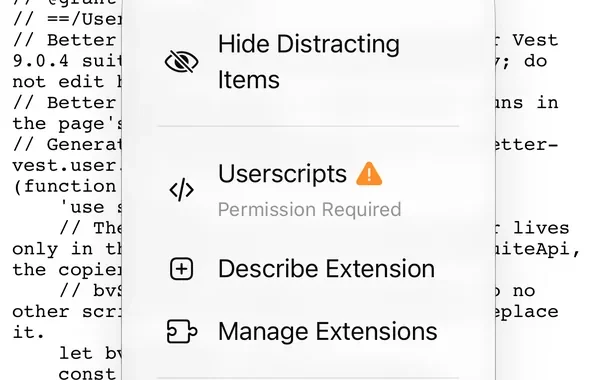
At the bottom of the screen, tap the page menu button: the three lines at the left of the address bar, ringed in the first picture. In the menu that opens, tap Userscripts, ringed in the second.
https://bvm.astrals.dev/better-vest-mobile.user.js
- 5
Install it
If Safari asks whether Userscripts may access bvm.astrals.dev, tap Allow for One Day.
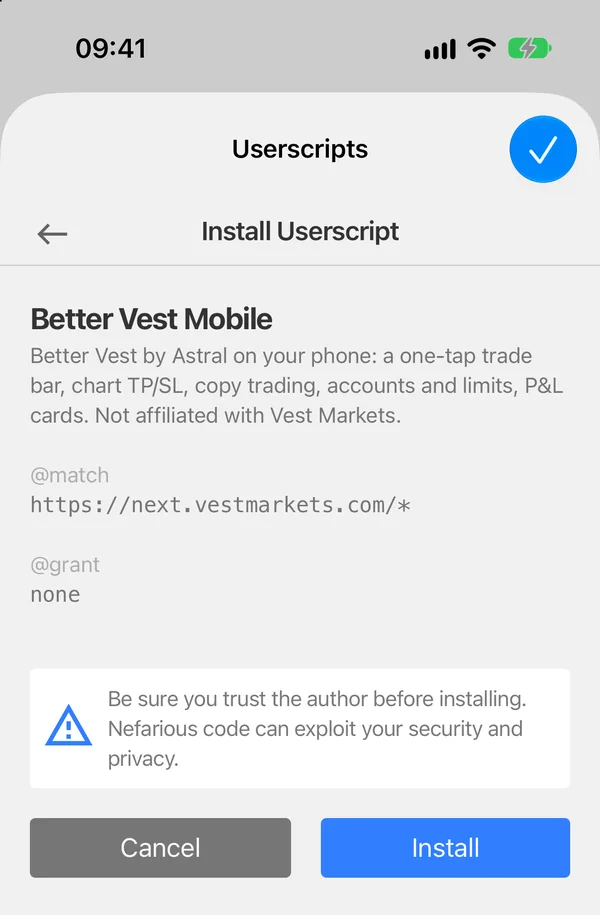
Userscripts shows Install Userscript with Better Vest Mobile and the one site it runs on, next.vestmarkets.com. Tap the blue Install button.
- 6
Allow it on Vest
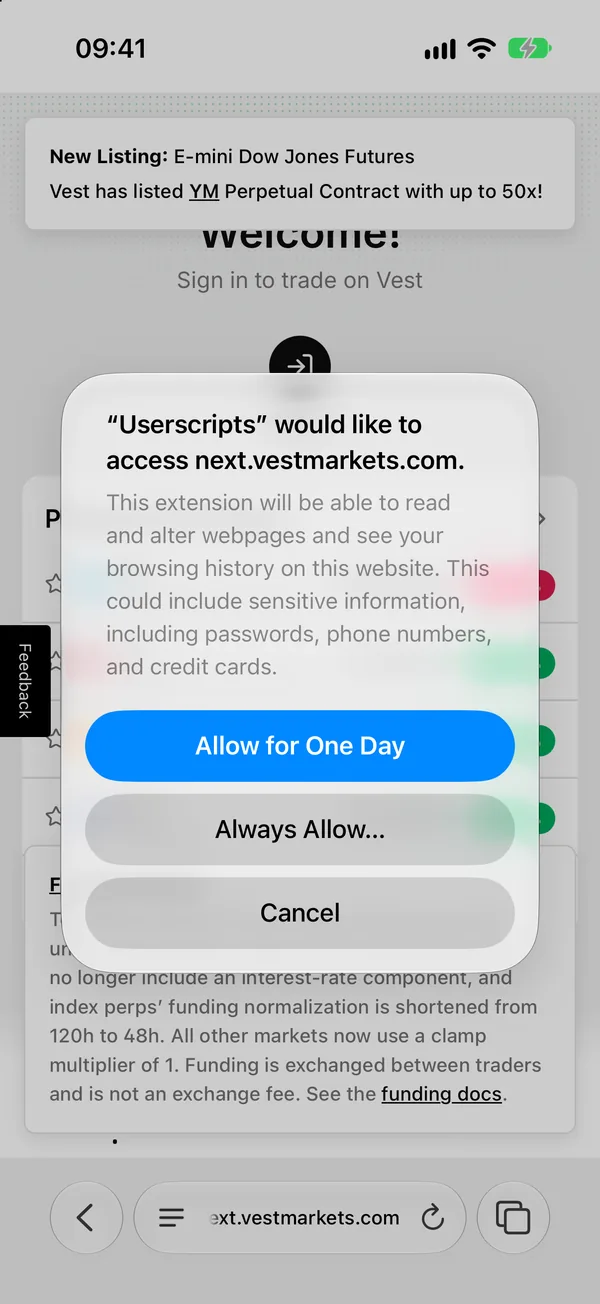
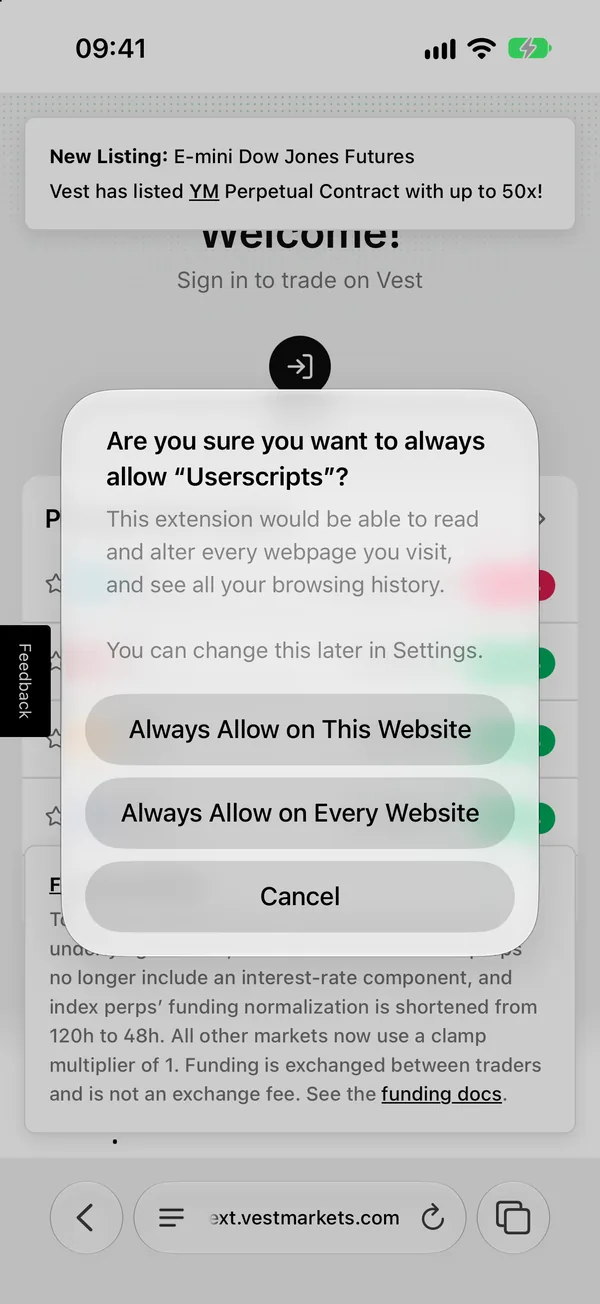
Open next.vestmarkets.com in Safari, tap the page menu again, then Userscripts. Safari asks whether Userscripts may access next.vestmarkets.com: tap Always Allow…, then Always Allow on This Website.
- 7
Trade
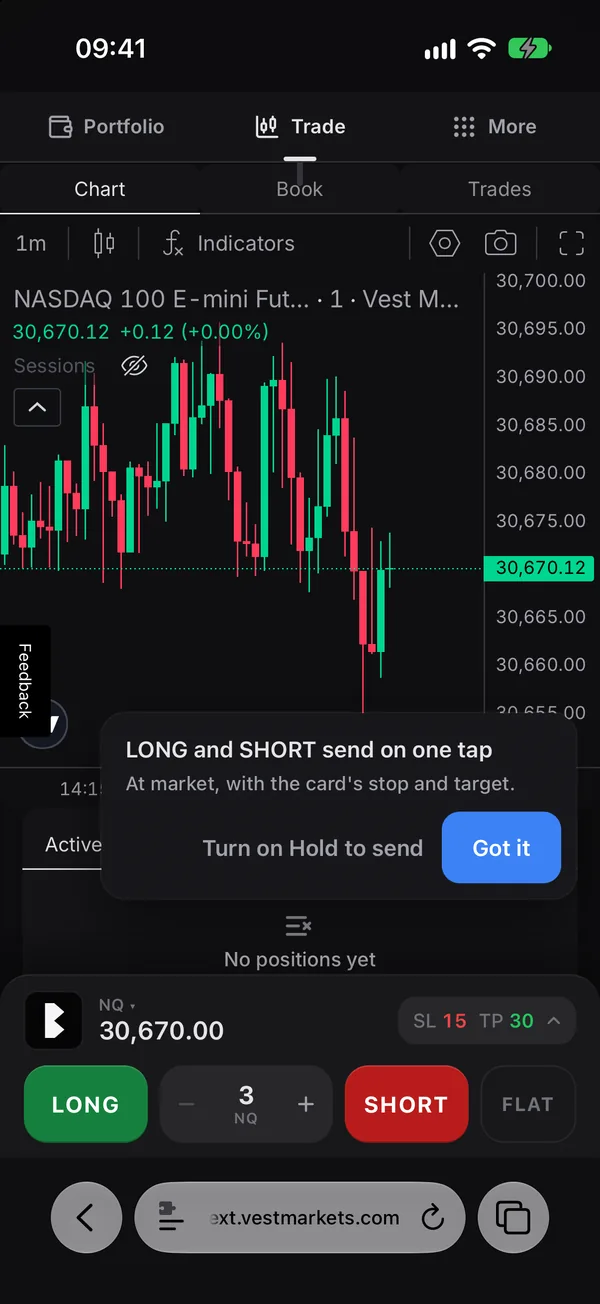
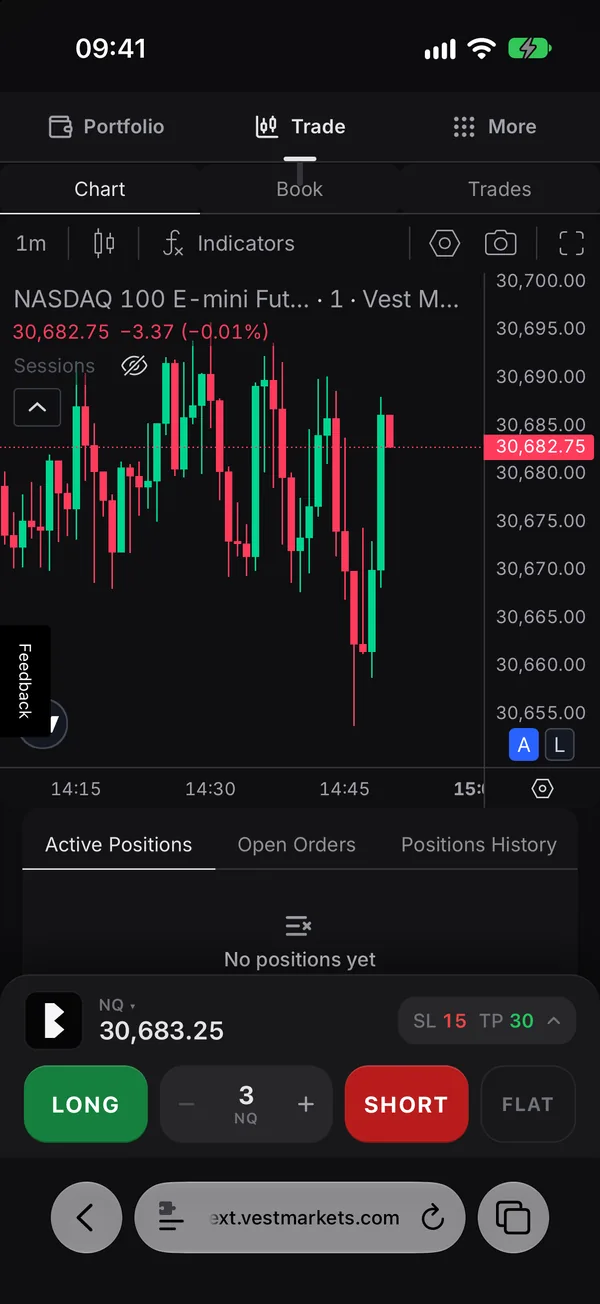
Better Vest starts right away; if it doesn’t, reload the page. On the trade page the dock sits at the bottom with the B at its left, and the B menu says Mobile 9.0.5. On Vest’s other pages the B waits in the bottom right corner.
The first time, a short note says LONG and SHORT send on one tap. Tap Got it, or turn on Hold to send if you want a short hold before an order goes.
If the B doesn’t show
Reload Vest
Tap the reload arrow in the address bar. Userscripts starts the script as the page loads.
Check that it’s on for Vest
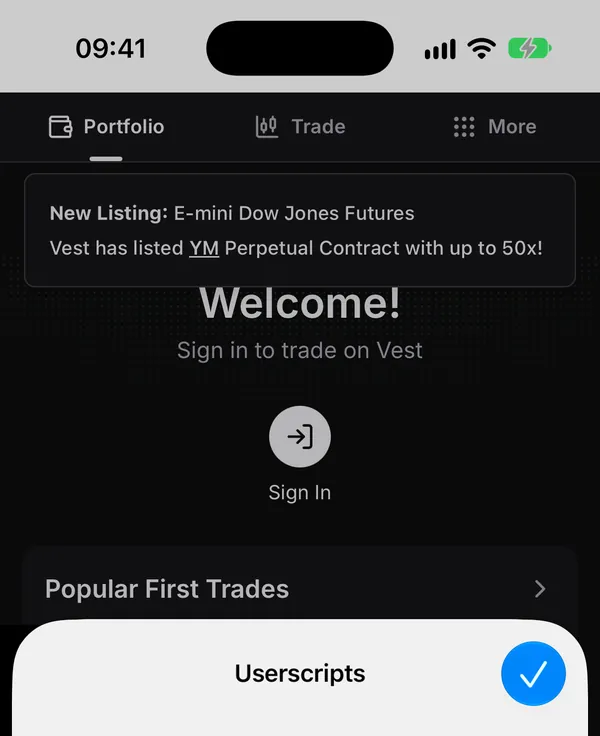
On Vest, tap the page menu, then Userscripts. Better Vest Mobile should be in the list with its switch on. If Safari asks first, tap Always Allow on This Website.
Use Safari itself
A Home Screen icon of Vest opens it as a web app, where Safari’s extensions don’t run. Open next.vestmarkets.com in Safari instead. Chrome and other apps on an iPhone can’t run it.
Private Browsing
Extensions stay off in a private tab unless you allow them: Settings, Apps, Safari, Extensions, Userscripts, Allow in Private Browsing. Or use a normal tab.
Still nothing
Check step 3 again (Allow Extension on), then message me on X, @ax4pa, or on Discord, @ax4p, with your iPhone and iOS version.
Already installed? See Update.
The screenshots are from Safari on the iOS 27 simulator, logged out of Vest, with the Userscripts app built from its maker’s source. Your iPhone’s may look a little different.
Version 9.0.5, 3.6 MB. SHA-256 adf3c54f56661e22f88d25cb5b3a8aa2476a86e7fd8000e75e7c6b0aea0d171f